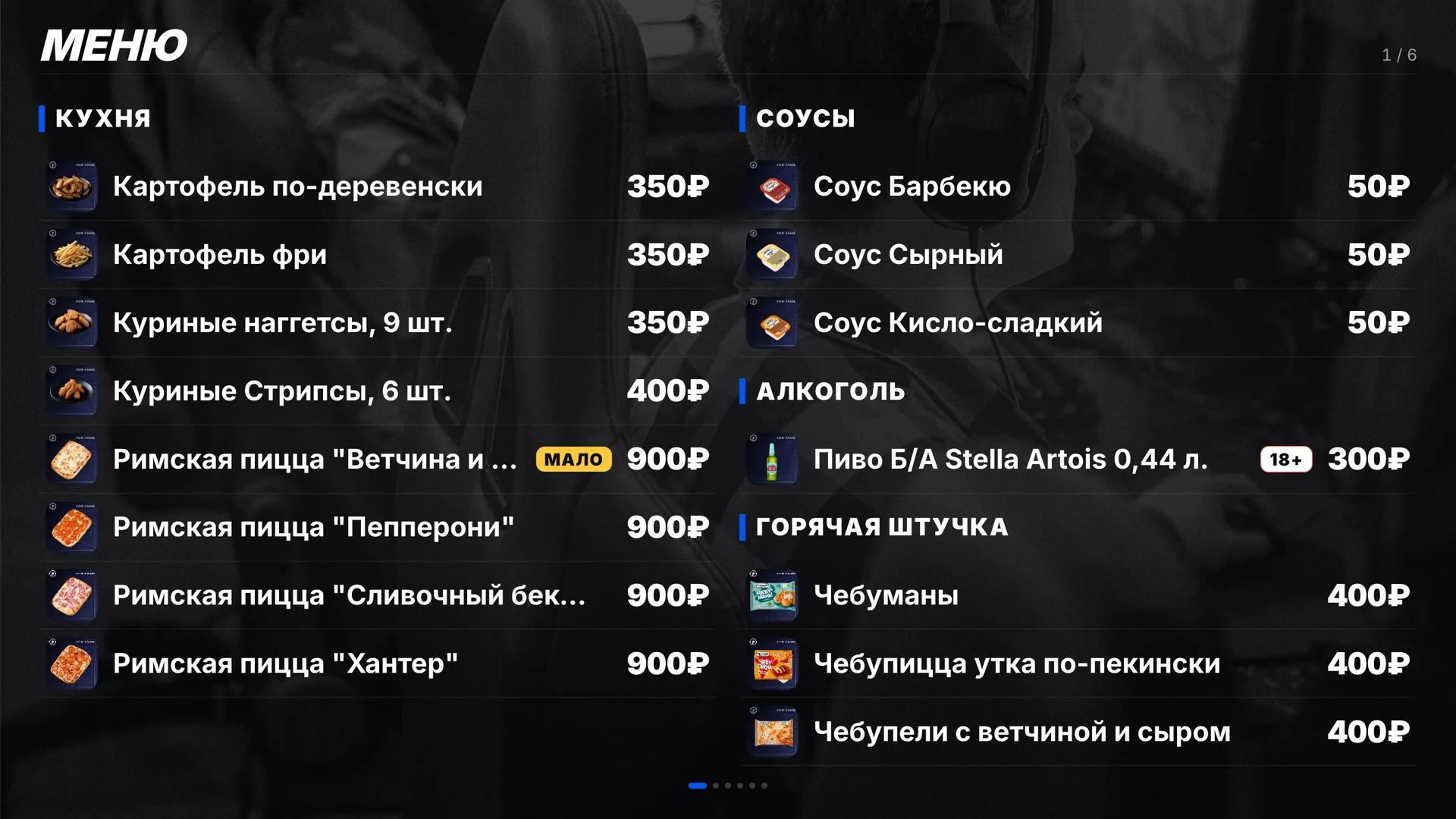
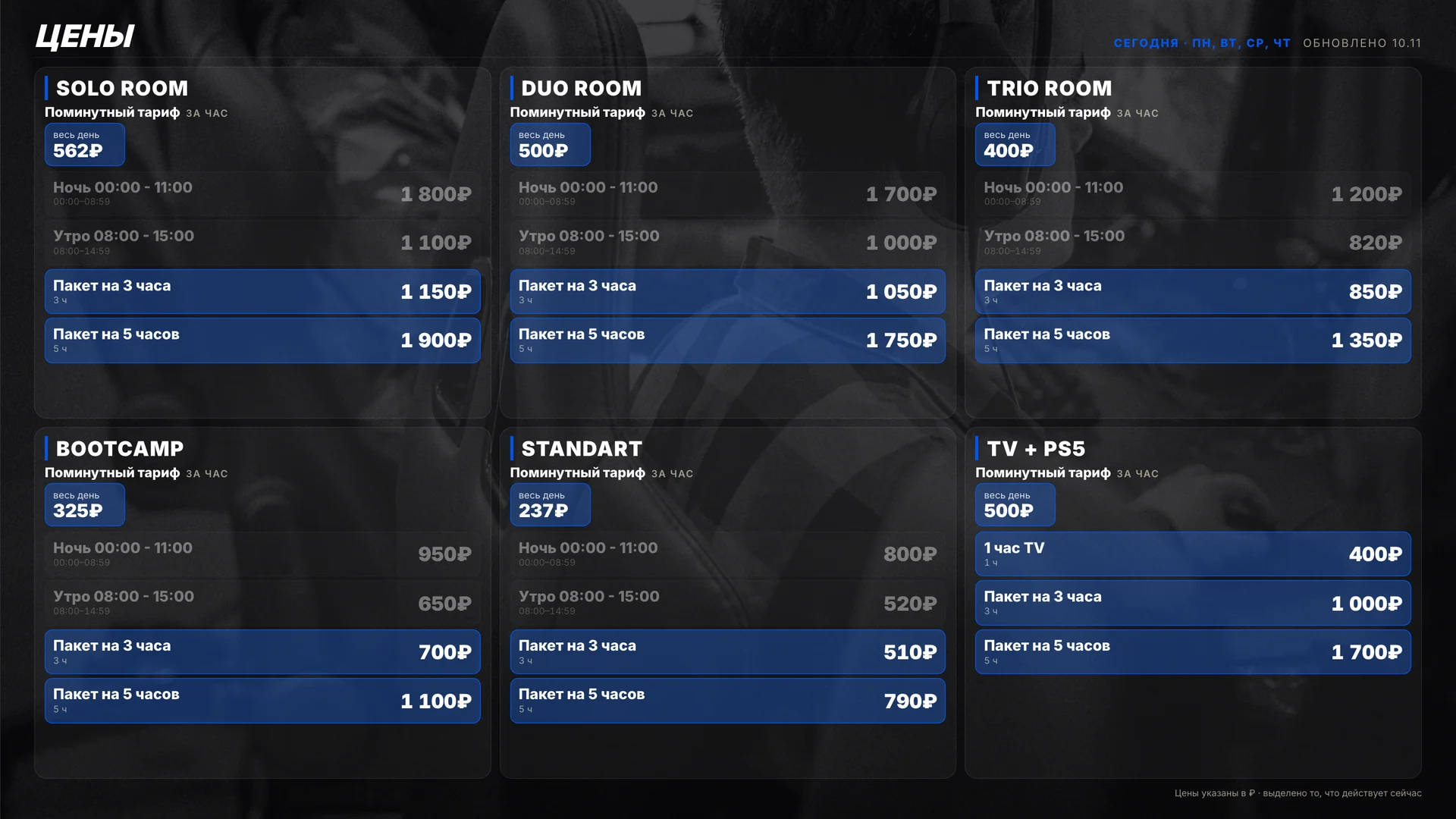
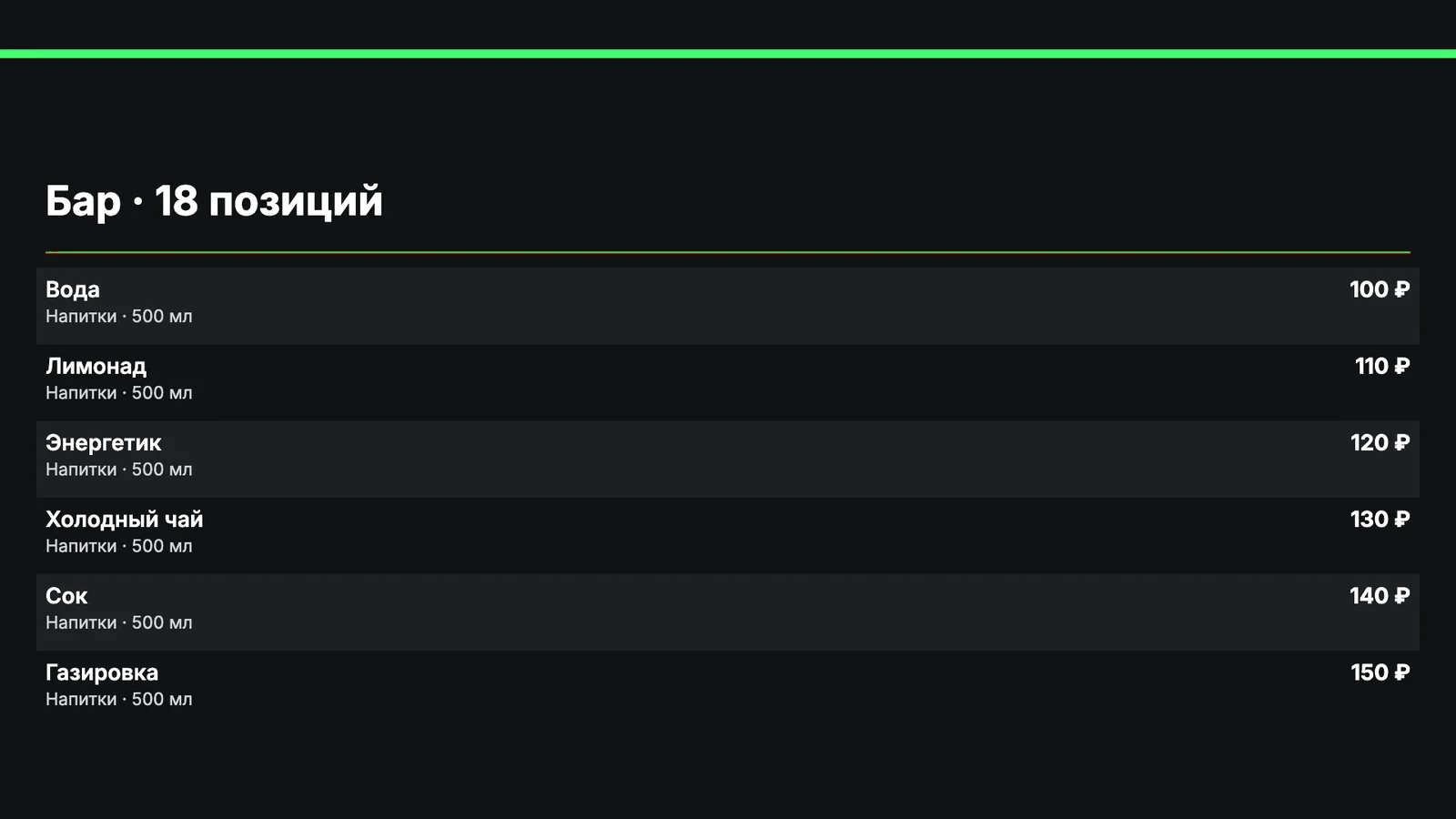
The playlist is built in the ERP: bar menu with photos, prices by zone, missions, giveaways and leaderboards. The TV switches scenes on its own, and a QR code on screen takes guests to the club’s app.
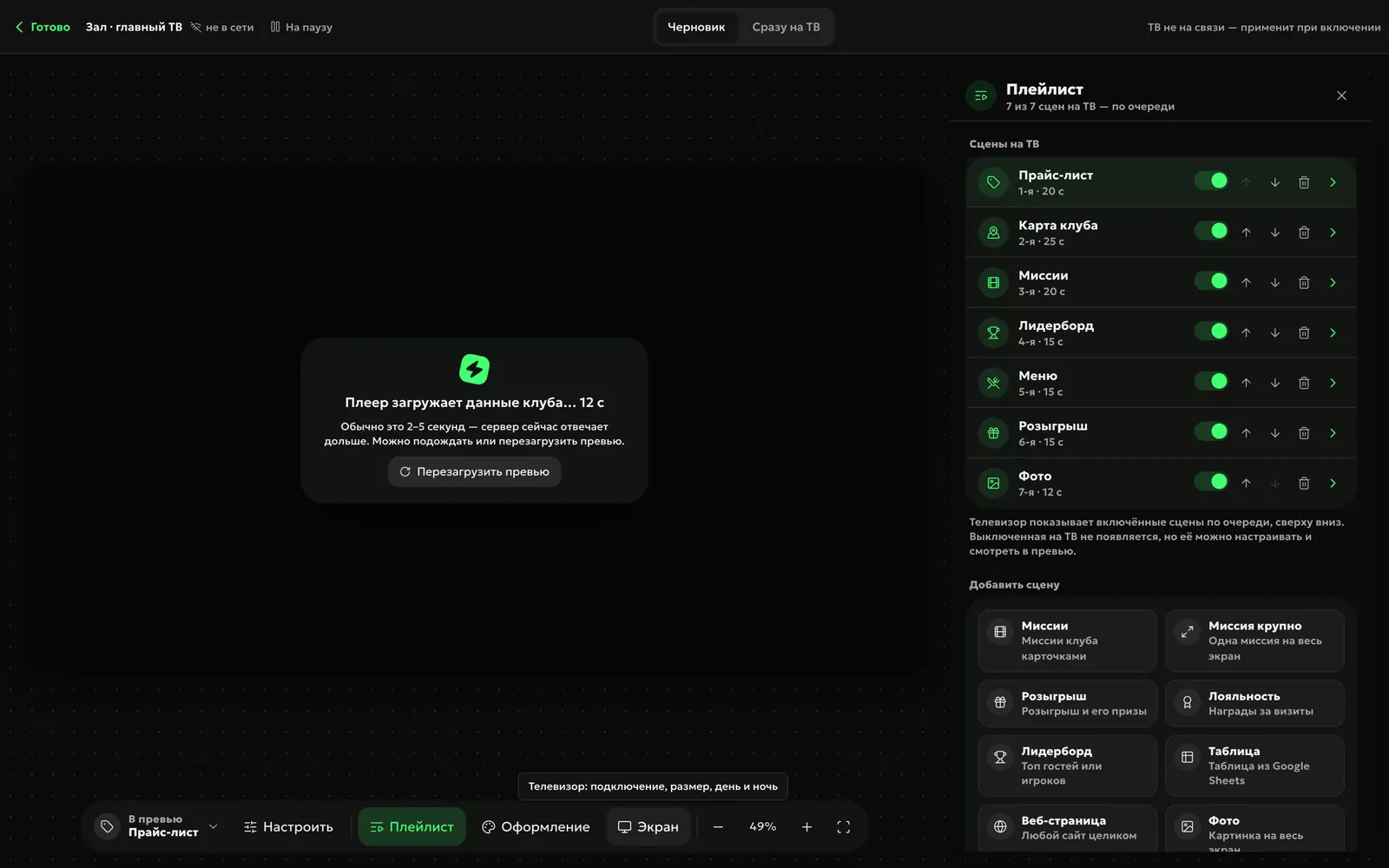
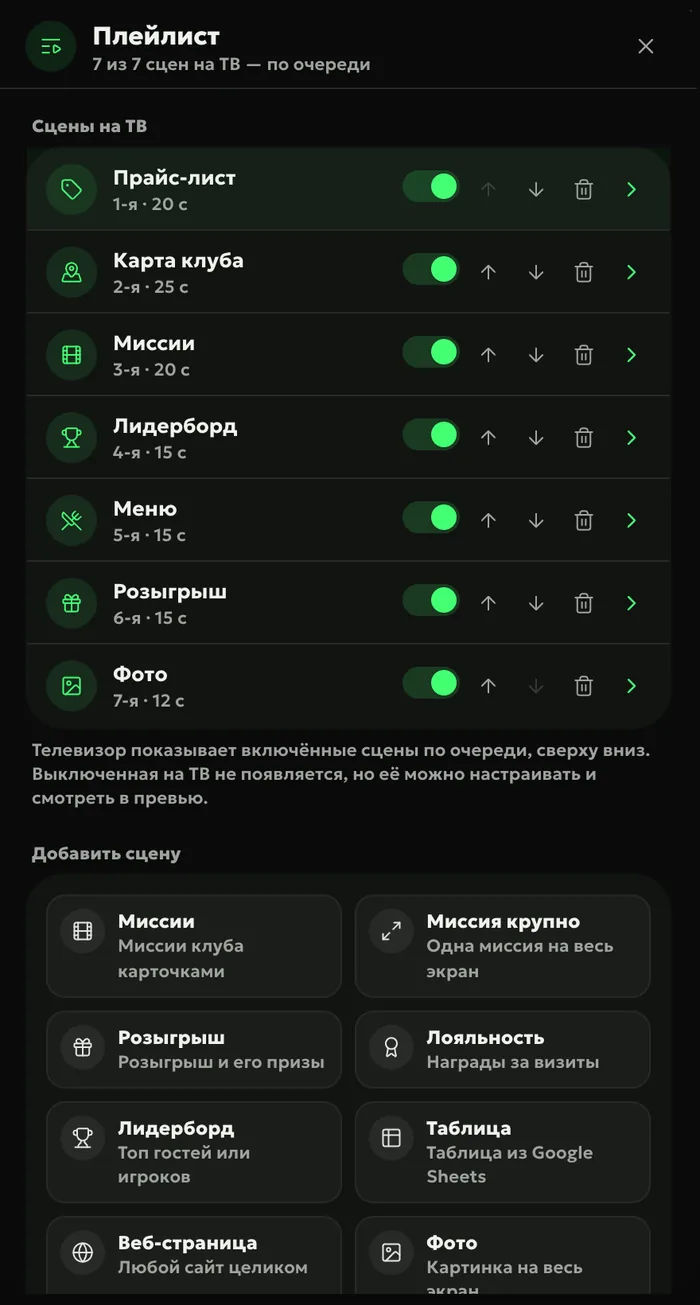
The playlist is made of scenes: menu, price list, missions and “Mission spotlight”, a giveaway, a leaderboard, the club map, photos, video, a Google Sheet or a web page. Each scene has its own screen time, and at night the screen can run on different settings.
Orientationa landscape TV or a portrait stand by the entrance
Areasa large screen splits into 2–4 parts, each with its own scenes
Show
The price list by zone highlights what applies right now; the bar menu shows a photo, price and stock. The rates on the TV are the same as in the guest app: hide a rate in the app and it disappears from the screen too.
Guide
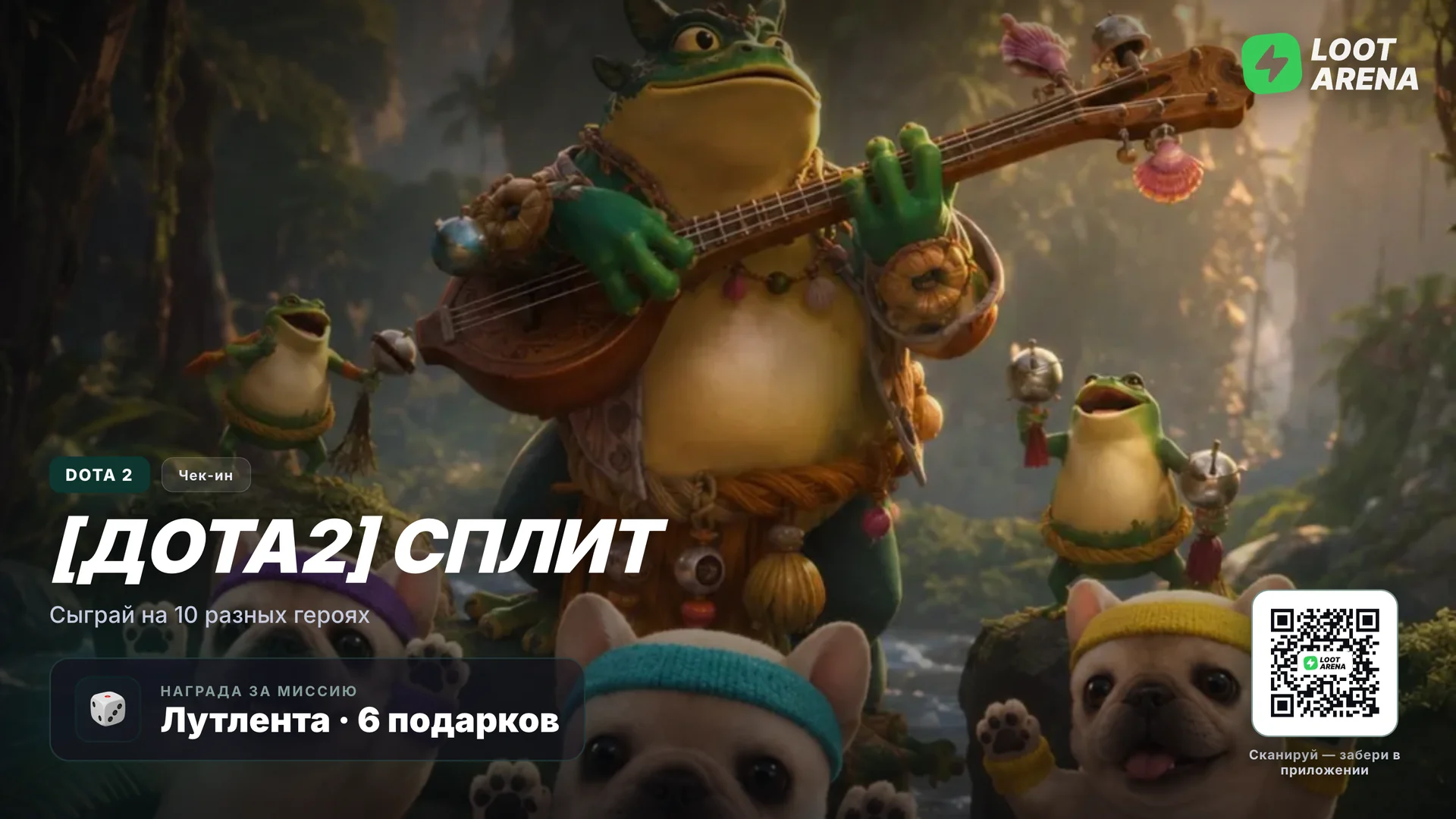
The “Mission spotlight” scene puts one mission on the whole screen — with game art, the reward and a QR code. A guest points a phone at it and opens the club’s app, and the “Social media” scene invites guests to a giveaway under a post the same way.
Scenes — on real screens
Price list, club map, missions, leaderboard, menu and giveaways — this is how the playlist looks on the club TV.
How to start
Open the screen on the TV
Each screen has its own link — open it in the TV’s browser, and from then on the ERP runs the screen.
Build the playlist
Choose scenes and screen time — the preview in the ERP shows the screen pixel for pixel.
Turn on QR codes
A mission or giveaway on screen leads guests to the club’s app.
Any TV or monitor with a browser. The ERP shows each screen’s TV model and browser and flags an outdated browser.
Which module includes the TV widget?
Marketing or Gaming — either one opens it. The tournament scene and CS2 and Dota 2 leaderboards come with Gaming.
Can one screen show several scenes?
Yes. The screen splits into areas — from two to four, each with its own scenes.
Where do prices and the menu come from?
From your club’s shell — the billing software such as LanGame, SmartShell, Gizmo or iCafeCloud: rates and products reach the ERP by themselves. A rate hidden in the guest app doesn’t show on the TV either.
How do I know the TV is working?
The ERP shows each screen’s status: whether it’s online and which scene is playing now. A screen that has been silent for 14 days is paused automatically.
Try Loot Arena
7 days on your club’s data: the shell integration by API is already set up, and every feature is open with no limits. It all happens by itself — your access arrives by email.