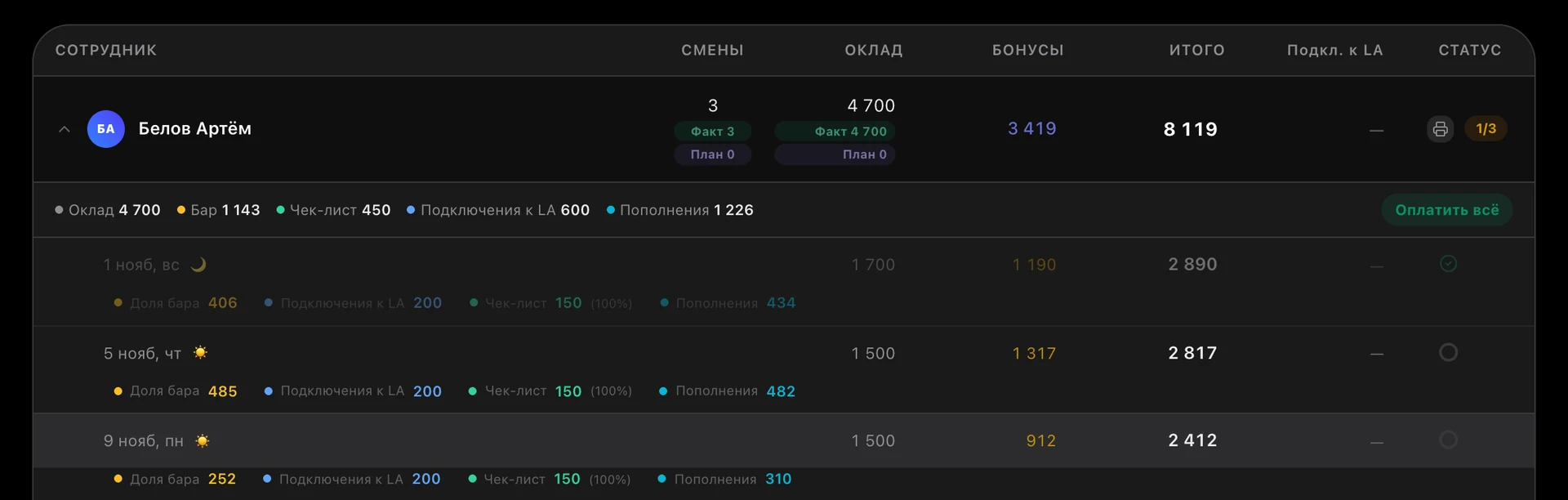
A checklist reaches whoever is on shift by itself — in the shift console and on their phone, on schedule. The manager sees every photo and the time of every tick, and an approved checklist adds a bonus to that shift’s pay.
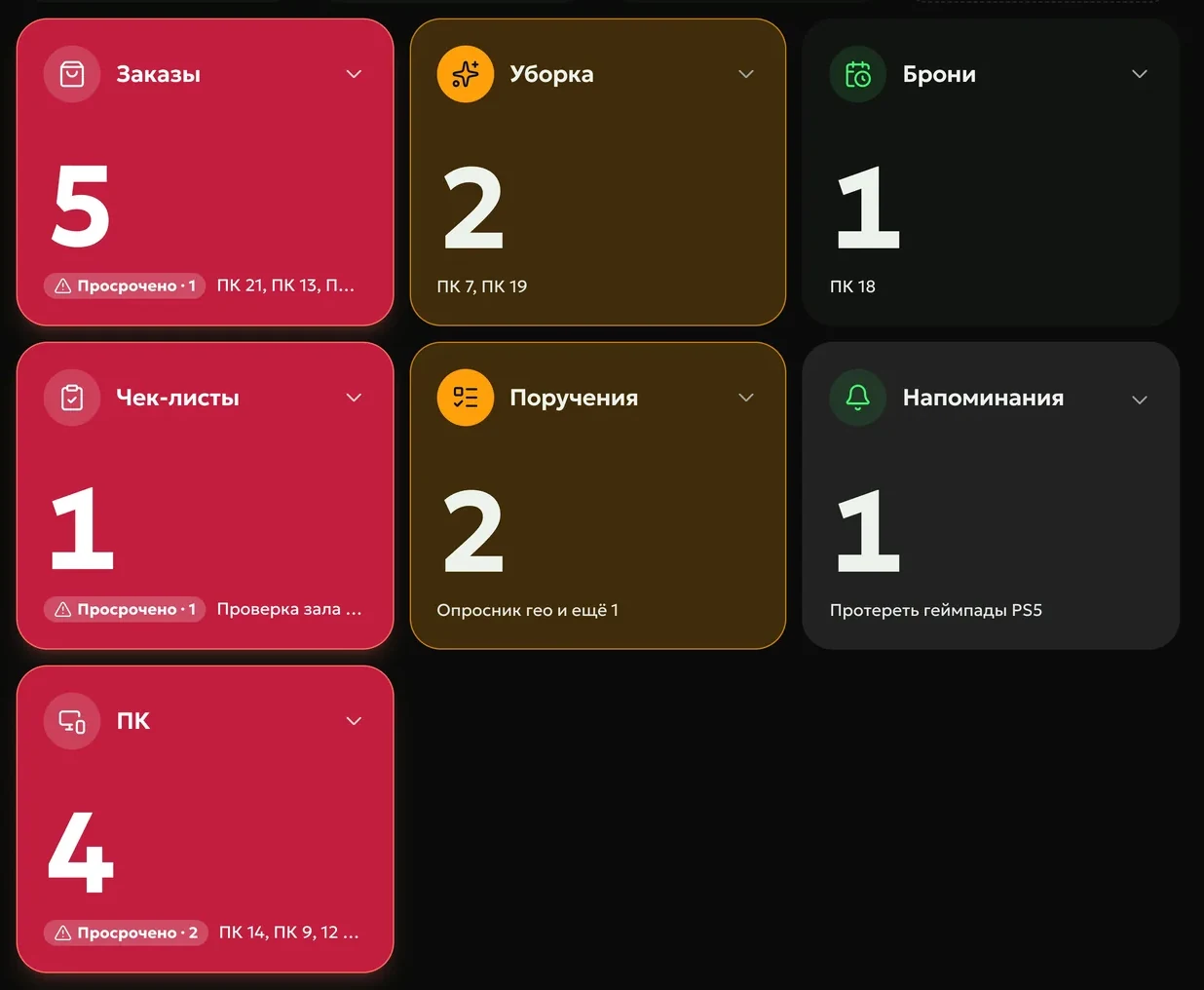
Opening, a floor check, closing — the schedule assigns the checklist by itself: once, every day, on chosen weekdays or once a month, for the day, night or evening shift. The checklist joins the console queue and the admin’s phone, and an overdue one turns red.
To whoever is on shiftby the staff schedule and the shifts in your club’s shell
One list for the dayshared by everyone who came in
To a specific employeeor to all employees of one type
Pass
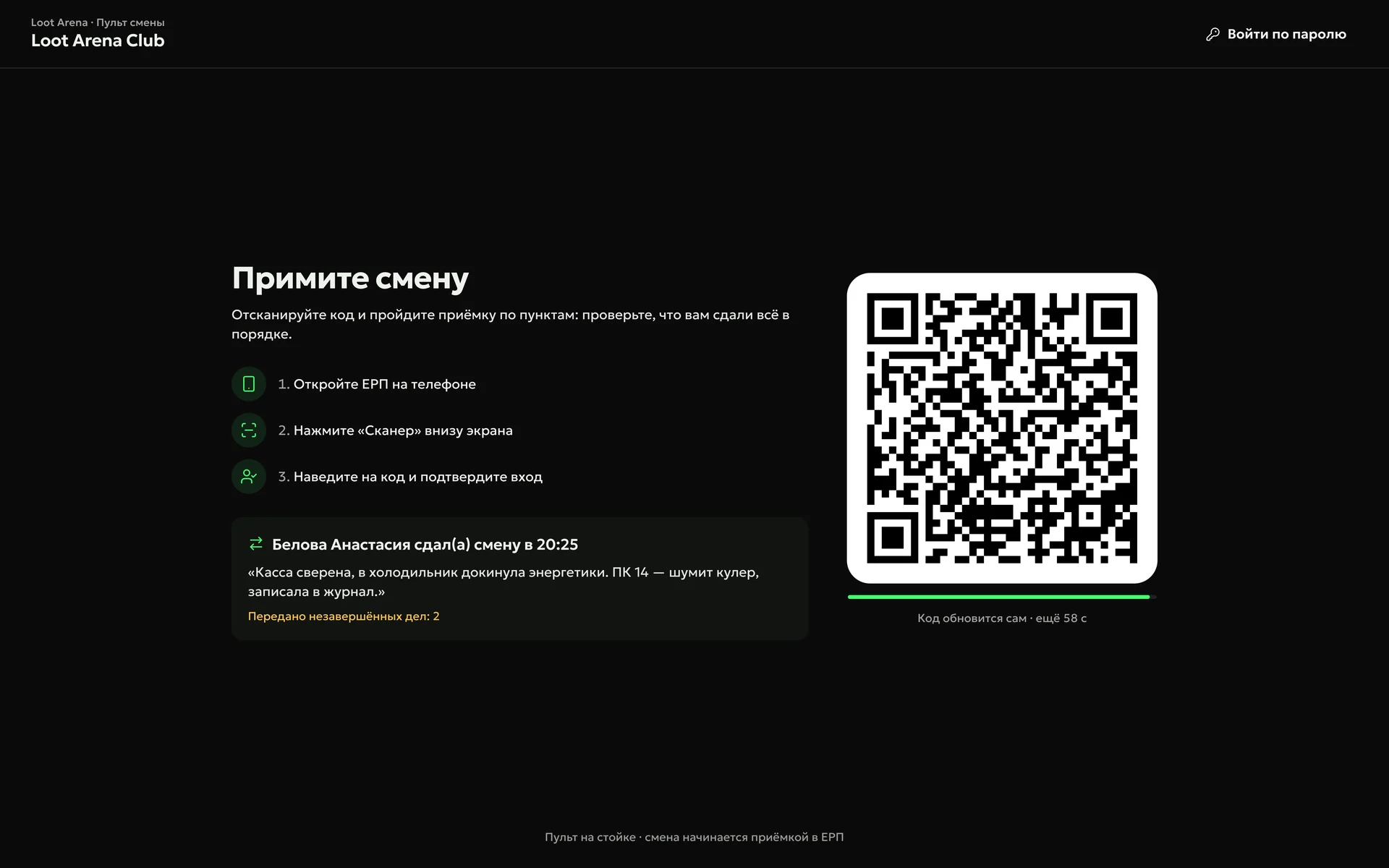
A shift starts with the acceptance checklist: until it is done, the console and the phone won’t let the admin go further. The shift is handed over with the closing checklist, and if tasks are left, the ERP asks for a comment for the next shift.
Verify
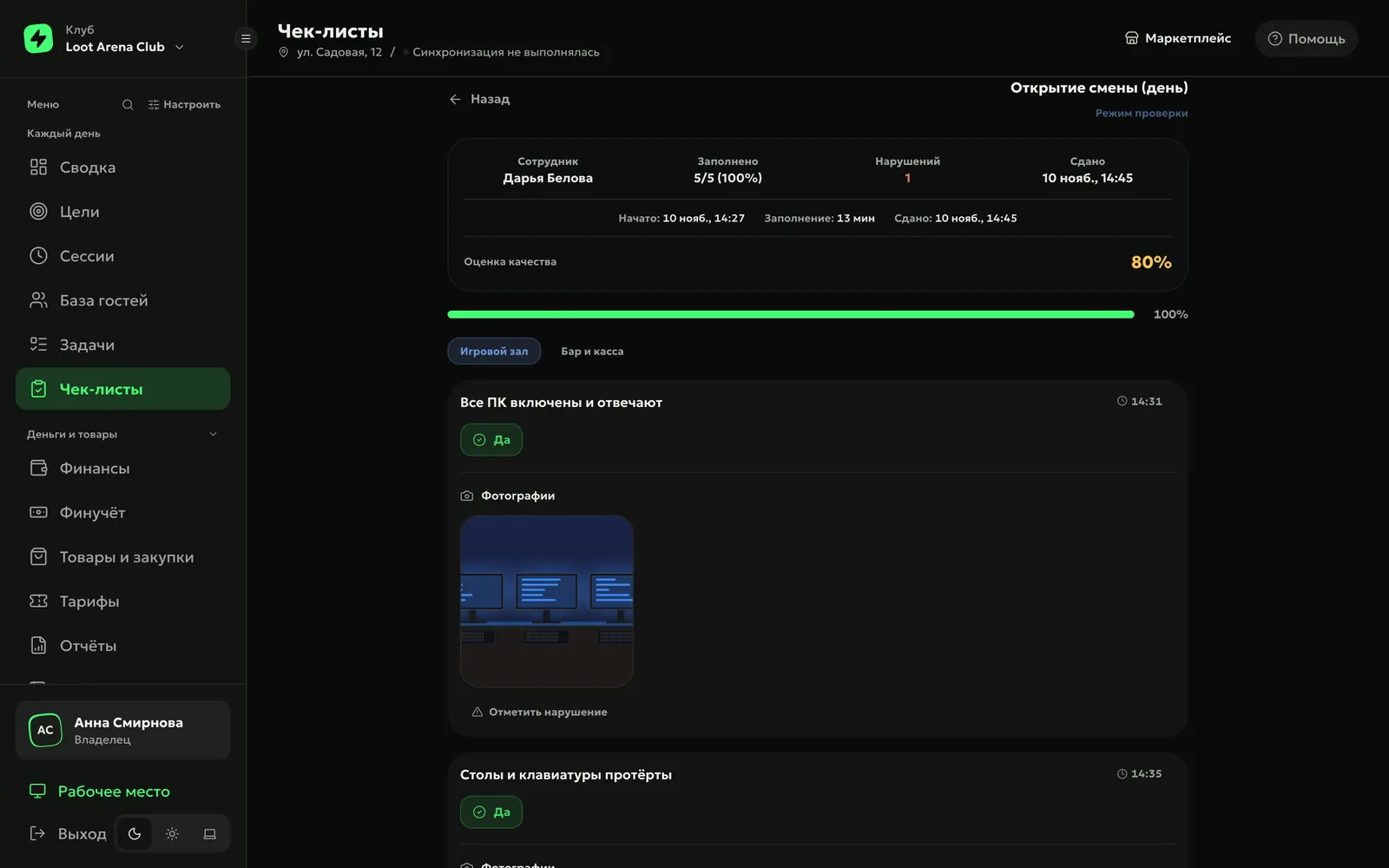
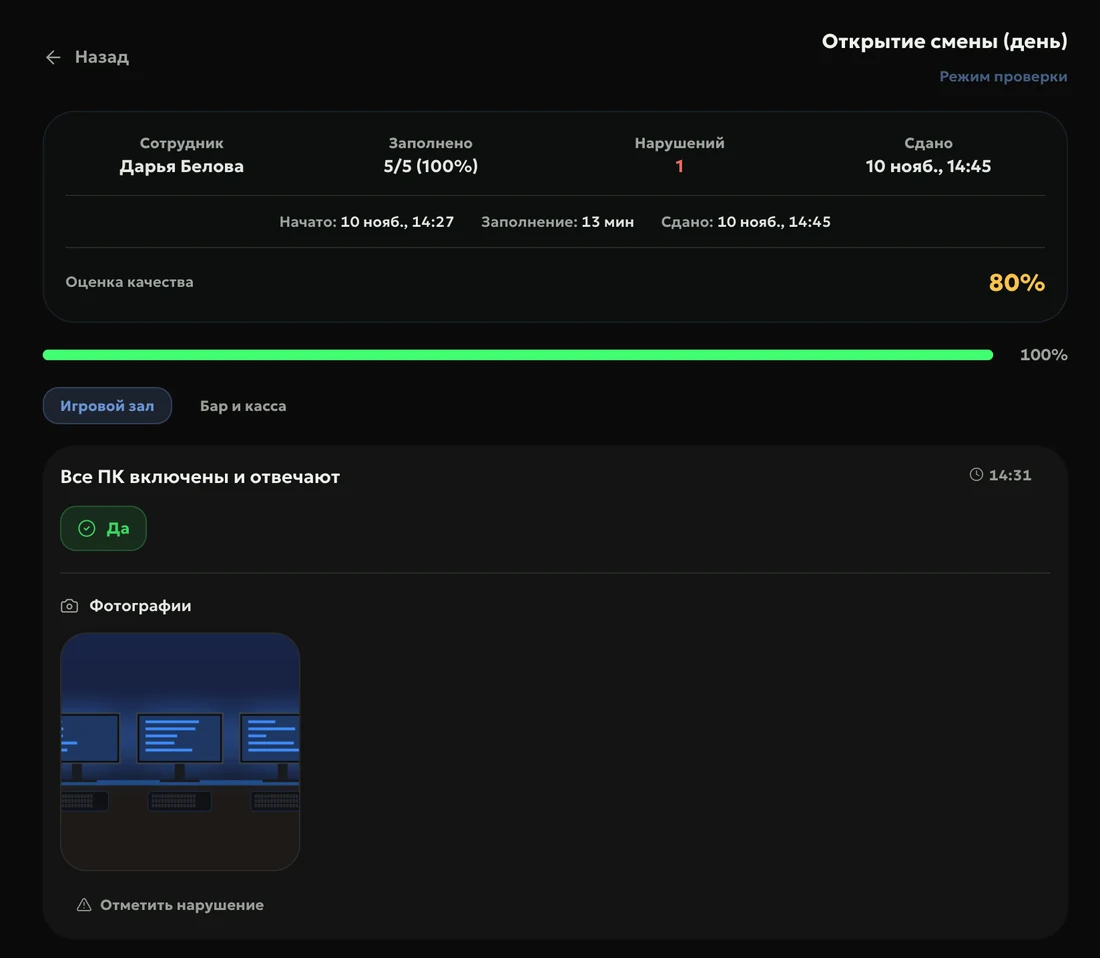
The ERP records the time of every tick and how long the checklist took. Items ticked in a row within seconds are highlighted, and the “Faster than usual” hint shows which checklist is worth comparing with the cameras. The manager marks a violation right in the item and sends the checklist back for rework with a comment.
Reward
A checklist bonus is a fixed amount or a percentage of base pay, for an item, a block or the whole checklist. A marked violation removes the bonus for its item, and an approved checklist goes into that shift’s pay by itself.
Template bonusfixed or a percentage of base pay — for an item, a block or the whole checklist
Scalea bonus by the share of the shift’s checklists approved
How to start
Build a template
Blocks and items of six kinds: yes or no, a score from 1 to 10, a text answer, a choice, a note and an instruction with a sample photo. Make a photo required where you need one.
Set a schedule
When, for which shift and for whom: whoever is on shift, everyone who came in, or a specific employee.
Choose handover checklists
In the console standards, pick the acceptance and handover checklists for the day and night shifts.
Can an admin attach an old photo instead of a new one?
No: by default, checklist photos are taken only with the phone camera. A club can open the gallery — for shots no older than 30 minutes or for any shots.
Do I have to review every checklist?
No. Turn off “Manager review” on the template, and a checklist with every item marked “Yes” and nothing skipped is approved by itself. A “No” answer, a skipped item or a late submission still comes in for review.
Can one checklist cover all my clubs?
Yes. You build the template and the schedule once for all your clubs, and the summary shows for each club how many were approved and where there are remarks.
Will answers be lost if the connection drops?
No. Each answer is saved on the phone first and goes to the server with retries until the server confirms it.
Which module includes checklists?
Operations: templates, schedules, review and bonuses. Admins fill in checklists in the mobile admin workplace, which is open to every club.
Try Loot Arena
7 days on your club’s data: the shell integration by API is already set up, and every feature is open with no limits. It all happens by itself — your access arrives by email.